WordPress 7.0 Migration Impact Checklist: Performance Gains, AI Client Setup, and Phase 3 Collaborative Workflow Changes
WordPress 7.0 "Armstrong" officially launched on May 20, 2026, marking one of the most transformative updates in WordPress history. This isn't just another incremental release it introduces AI integration directly into Core, real-time collaboration (Phase 3 of the Gutenberg roadmap), and meaningful performance improvements that directly impact how developers build and maintain WordPress sites.
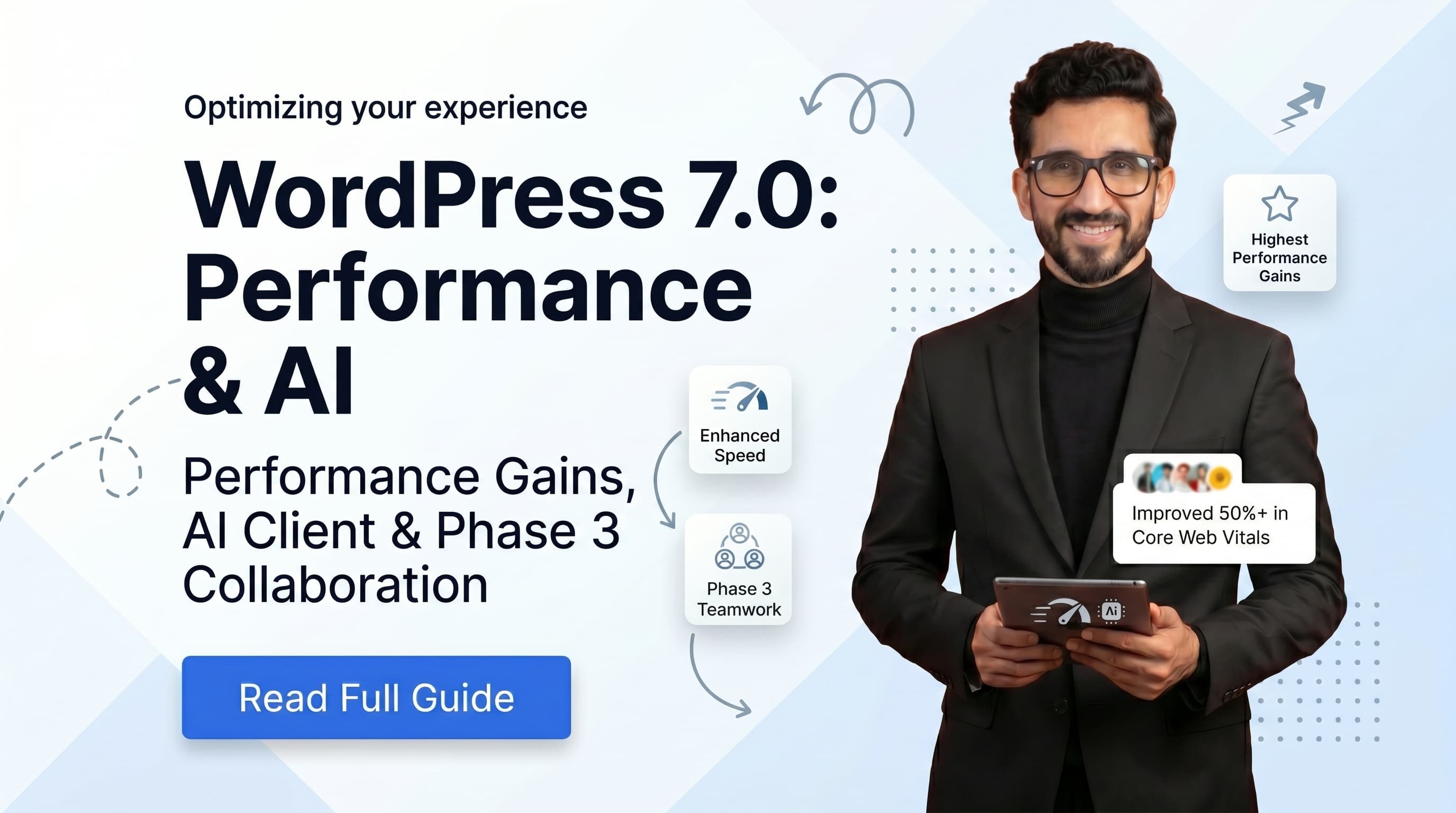
WordPress 7.0 "Armstrong" officially launched on May 20, 2026, marking one of the most transformative updates in WordPress history. This isn't just another incremental release it introduces AI integration directly into Core, real-time collaboration (Phase 3 of the Gutenberg roadmap), and meaningful performance improvements that directly impact how developers build and maintain WordPress sites.
As a WordPress developer specializing in speed optimization, technical SEO, and custom theme development with over five years of experience, I've been testing WordPress 7.0 extensively. This comprehensive migration impact checklist is designed to help developers, agency owners, and business owners navigate the upgrade smoothly while capturing all the performance gains, AI capabilities, and collaborative workflow improvements.
Why WordPress 7.0 Matters for Developers
WordPress powers over 40% of the web, and version 7.0 represents a fundamental shift in how the platform operates. The integration of AI in Core, the introduction of real-time collaboration, and performance improvements make it easier than ever to build fast, SEO-friendly, collaborative WordPress sites. But with great power comes great responsibility major releases carry migration risks that must be managed carefully.
WordPress 7.0 is no exception. It packs in real-time collaborative editing, new native blocks, a built-in AI client API, responsive editing controls, and backend performance improvements that make content editing smoother and more efficient.
Pre-Migration Preparation: The Foundation for Success
Before you even think about hitting that "Update" button, proper preparation is critical. WordPress 7.0 is a major release with breaking changes that could impact your site if not handled correctly.
Infrastructure Requirements
PHP Version Upgrade: WordPress 7.0 recommends PHP 8.3 or 8.4 for optimal performance. While the minimum requirement is PHP 7.4, you'll miss out on significant performance improvements if you don't upgrade. Check your php.ini configuration and coordinate with your hosting provider for a seamless upgrade. Sites running PHP 8.3+ see measurable improvements in execution time and memory usage.
Server Compatibility: Verify your hosting provider supports WordPress 7.0. Some older hosting environments may not be compatible immediately after release. Consider upgrading to a managed WordPress hosting solution that automatically tests for compatibility and provides one-click staging environments.
Database Requirements: Ensure you're running MySQL 5.7+ or MariaDB 10.3+. Older database versions may not support new features properly and could cause compatibility issues during migration.
Backup Strategy: Create a complete backup of both files and database before migration. Use a reputable backup plugin like UpdraftPlus or rely on your hosting provider's backup solution. Store backups off-site in cloud storage or on a local machine. Never skip this step.
Staging Environment: Never migrate your production site directly. Set up a staging environment that mirrors your production setup exactly. Test the migration there first, validate everything works, then migrate to production. This single step alone will save you from countless headaches.
Plugin and Theme Audit
Plugin Compatibility Review: Review every active plugin for WordPress 7.0 compatibility. Check plugin developer announcements, support forums, and compatibility lists. WordPress 7.0 introduces the AI Client in Core, which makes custom AI plugin wrappers obsolete plugins built on the old approach may need updates.
Theme Compatibility: Verify your custom themes or block themes work with WordPress 7.0. Test both the frontend and backend functionality. Custom block themes should leverage the enhanced Site Editor improvements with new design tools and direct customization options.
Remove Unused Plugins: Delete inactive plugins before migration. Every plugin adds potential conflict points, and WordPress 7.0's cleaner APIs work better with minimal plugin footprints. Aim for fewer than 15 active plugins for optimal performance.
Update Everything First: Update all plugins and themes to their latest versions before migrating to WordPress 7.0. This reduces the chance of conflicts during the upgrade process and ensures you're testing the most compatible versions.
Custom Code Review: Check for deprecated functions or breaking API changes. WordPress 7.0 Field Guide outlines major developer features and breaking changes review it thoroughly if you have custom code in themes or plugins.
Performance Gains Migration Checklist
WordPress 7.0 delivers meaningful performance improvements that directly impact Core Web Vitals and user experience. These aren't marginal gains they're measurable improvements that affect your SEO rankings and conversion rates.
Core Web Vitals Optimization
LCP (Largest Contentful Paint) WordPress 7.0 improves the accuracy of image loading prioritization, preventing hidden images in navigation overlays or interactive blocks from degrading critical resource loading. This directly helps you achieve LCP ≤ 2.5 seconds, which is Google's recommended threshold for good user experience.
INP (Interaction to Next Paint) The editor performance improvements make content editing smoother and more efficient, which translates to better INP scores. Target INP ≤ 200 milliseconds for optimal performance. INP measures responsiveness, and WordPress 7.0's improvements here are noticeable.
CLS (Cumulative Layout Shift) The new default color scheme improves color contrast, and better image loading prevents hidden images from shifting layout. Target CLS ≤ 0.1, which Google considers excellent for visual stability.
Technical Performance Improvements
On-Demand Block Stylesheet Loading: WordPress 7.0 makes on-demand block stylesheet loading more reliable in classic themes. This reduces render-blocking CSS and improves LCP significantly. Verify this works correctly in your theme by checking that only necessary styles load for visible blocks.
Script Modules Dependency: Scripts can now depend on script modules, reducing render-blocking resources. If you're building custom themes or plugins, leverage this feature to improve performance. This is a developer-facing improvement that enables better performance optimization.
REST API Performance: WordPress 7.0 includes improved REST API performance and cleaner APIs. Test your custom REST API integrations and verify they work with the improved performance. The update includes cleaner APIs and better compatibility with modern frameworks.
Modern Framework Compatibility: The update includes better compatibility with modern frameworks like React and Next.js. If you're building headless WordPress setups or using modern JavaScript frameworks, test compatibility thoroughly. These enhancements make WordPress 7.0 more developer-friendly.
Frontend Performance Optimization
Caching Strategy Update: Update your caching configuration (WP Rocket, Redis, or Varnish) for WordPress 7.0. Clear all caches after migration and test performance. Configure object caching for database queries and page caching for dynamic content.
CDN Configuration: Verify your CDN (Cloudflare, BunnyCDN, or similar) works correctly with WordPress 7.0's new script and style handling. Test global loading speeds from multiple locations using tools like GTmetrix or WebPageTest.
Image Optimization: Implement WebP and AVIF image formats with WordPress 7.0's improved image loading. Use plugins like ShortPixel, Imagify, or EWWW Image Optimizer for automatic conversion. Enable responsive images to serve appropriately sized images to different devices.
Critical CSS Injection: Inject critical CSS to leverage WordPress 7.0's performance improvements. Tools like Autoptimize or WP Rocket can handle this automatically. Critical CSS ensures above-the-fold content renders immediately.
Lazy Loading: Enable lazy loading for below-the-fold content. WordPress 7.0's improved image loading prioritization works best with lazy loading enabled. This reduces initial page load time significantly.
Database Optimization: Clean up your database before migration. Remove post revisions, spam comments, and transients. Optimize database tables to reduce server response time. Use plugins like WP-Optimize or Advanced Database Cleaner.
Backend Performance Testing
Editor Performance Testing: Test the Gutenberg block editor after migration. WordPress 7.0's block editor loads faster and renders smoother than previous versions. You should notice immediate improvements when editing content, with blocks loading faster and rendering more smoothly.
Build Process Verification: Verify your development build process works with WordPress 7.0's updated build system. If you're using npm, webpack, Vite, or other build tools, test thoroughly. The build process was updated in WordPress 7.0.
Admin Interface Testing: Test the completely modernized admin dashboard. WordPress 7.0 includes a fresh color scheme, updated buttons and inputs, and pages that fade between each other instead of jumping abruptly. This creates a smoother admin experience.
Button and Input Updates: Verify custom buttons and inputs work with the updated styles. WordPress 7.0 updated the default button and input styles for better consistency and accessibility.
Based on early testing with WordPress 7.0 Beta 3, the platform continues its trend of gradual but meaningful performance improvements. For developers focused on Core Web Vitals, WordPress 7.0 makes it easier to achieve optimal scores.
WP AI Client Setup Checklist: The Flagship Feature
The WP AI Client is WordPress 7.0's flagship feature. It's a provider-agnostic API for seamless integration of AI models like OpenAI, Google, and Anthropic directly into Core. This makes custom OpenAI wrappers and third-party AI plugins obsolete, centralizing AI functionality in one place.
WordPress 7.0 introduces the WP AI Client, a provider-agnostic API for seamless integration of AI models like OpenAI and Google into your WordPress site.
Installation and Configuration
Install WordPress 7.0: Upgrade to WordPress 7.0 (stable release May 20, 2026). Verify the upgrade completed successfully by checking the dashboard for the version number in the footer.
Install AI Provider Plugin: WordPress 7.0's AI Client is provider-agnostic, but you need to install at least one AI provider plugin from WordPress.org to actually use AI features. Available providers include:
- Anthropic (Claude)
- Google (Gemini)
- OpenAI (GPT-4o)
- Grok
- OpenRouter
Install your preferred provider plugin through the WordPress plugin repository. You can install multiple providers and switch between them.
Navigate to Settings → AI Connectors: Access the centralized AI configuration panel. This is where you'll configure all AI settings in one place, a major improvement over having API keys scattered across multiple plugins.
Configure API Key: Drop in your API key for the selected provider. The key is centralized in core settings, meaning all AI features read from one place (core + plugins). You don't need to configure API keys in multiple plugins, which simplifies management significantly.
Verify Centralization: Confirm all AI features read from the centralized configuration. Test by generating content with different AI features and verify they all use the same API key from the central location.
Enable AI Experiments
Navigate to Settings → AI Experiments: Access the AI feature toggles panel. This is where you enable specific AI capabilities for your site.
Enable Experiments: Click "Enable Experiments" to activate AI features. This is a one-time setup step that unlocks all available AI capabilities.
Toggle Available Features: Enable the AI features you want to use based on your needs:
- Title Generation: Generate SEO-friendly post and page titles automatically
- Excerpt Generation: Auto-generate post excerpts for SEO optimization
- Alt Text Generation: Generate image alt text automatically for accessibility and SEO
- Image Generation: Create AI-generated images if needed for content
- Review Notes: Get AI-powered review suggestions for content
- Content Summarization: Generate content summaries for meta descriptions
- Abilities Explorer: Explore natural language processing capabilities
AI Integration Testing
Test Title Generation: Create a new post and test the AI title generation feature. Verify it generates SEO-friendly titles with appropriate keywords and proper length for search engines.
Test Excerpt Generation: Test excerpt generation for blog posts. Verify the excerpts are appropriate length (around 155 characters) and include relevant keywords for SEO.
Test Alt Text Generation: Upload an image and test automatic alt text generation. Verify the alt text is descriptive, accessible, and includes relevant keywords naturally.
Test Image Generation: If you enable image generation, test creating AI-generated images for content. Review quality and appropriateness for your use case.
Test Content Summarization: Test generating content summaries. Use these for meta descriptions to improve SEO and click-through rates from search results.
Test Abilities Explorer: Explore the Abilities Explorer to understand what natural language processing capabilities are available and how they can benefit your workflow.
Plugin Integration Testing: Verify AI plugins built on the WP AI Client framework work correctly. Since the AI Client is now in Core, plugins should leverage it instead of building custom wrappers, reducing redundancy.
SEO and Content Optimization with AI
Meta Description Optimization: Use AI to optimize meta descriptions for better click-through rates. Generate multiple variations and A/B test them to find the best performers.
Schema Markup Generation: Use AI to generate schema markup automatically. This saves time and ensures consistent implementation across your site, improving rich snippet appearance in search results.
Keyword Improvement Suggestions: Use AI for keyword optimization suggestions. AI can analyze your content and suggest relevant keywords to target based on search intent and competition.
Internal Linking Suggestions: Use AI for smart internal linking recommendations. AI can analyze your content and suggest relevant internal links to improve site structure and distribute page authority.
Phase 3 Collaborative Workflow Changes Checklist
If Phase 1 was the block editor and Phase 2 was full site editing, Phase 3 is collaboration. WordPress 7.0 introduces Google Docs-style real-time collaboration, fundamentally changing how teams work together on WordPress content. This is one of the most anticipated features in the entire WordPress ecosystem.
As part of Gutenberg Phase 3, WordPress 7.0 introduces Google Docs-style real-time collaboration where multiple team members can work on the same post simultaneously.
Real-Time Collaboration Setup
Enable Real-Time Collaboration: Verify real-time collaboration is active. WordPress 7.0 introduces Google Docs-style real-time collaboration in the block editor, built on an HTTP polling sync provider and CRDT data storage.
Multiple User Testing: Test that multiple team members can co-edit posts simultaneously. Invite two or more users to edit the same post at the same time and verify changes sync in real-time within seconds. This is the core feature of Phase 3.
Editor Lockout Removal: Confirm the "this post is being edited by another user" lock screen no longer appears. This is a major workflow improvement that eliminates the frustration of competing edits.
HTTP Polling Sync: Verify the HTTP polling sync provider is working. WordPress 7.0's collaboration is built on HTTP polling sync, which ensures changes propagate quickly between users.
CRDT Data Storage: Confirm CRDT (Conflict-free Replicated Data Type) data storage is functioning for conflict resolution. This ensures no data conflicts when multiple users edit simultaneously, automatically resolving conflicts without data loss.
Enhanced Notes Feature
Access Enhanced Notes: Use the new Enhanced Notes feature to bridge writing and reviewing. This is a key collaboration feature in WordPress 7.0 that replaces the old comment system.
Targeted Feedback: Leave targeted feedback directly attached to specific blocks. Instead of general comments about a post, you can now comment on individual blocks with precise context.
Text Fragment Comments: Add comments to specific text fragments inside the editor. This enables precise feedback on content without ambiguity about what you're referring to.
Review Workflow Testing: Test the review workflow with team members using Enhanced Notes. Establish a clear process for content review and approval that leverages the new collaboration features.
Collaborative Workflow Changes
Team Training: Train team members on real-time collaboration features. Create documentation and training materials for your team so everyone understands how to use the new features effectively.
Workflow Documentation: Document new collaborative workflow processes. Update your content creation and approval workflows to leverage real-time collaboration instead of sequential editing.
Reduce Email Exchanges: Use collaboration features to reduce back-and-forth email. Instead of sending drafts via email with comments attached, collaborate directly in WordPress where everyone can see changes in real-time [previous article].
Client Collaboration: Enable clients to collaborate directly in WordPress without Google Docs. Give clients limited access to edit content with your team, reducing the handoff friction [previous article].
Revision Cycle Reduction: Use real-time editing to reduce revision cycles. Teams can work together simultaneously instead of waiting for turn-based edits, speeding up content production significantly [previous article].
Navigation and Design Tools
Mobile Navigation Overlays: Customize navigation overlays on mobile with granular control. WordPress 7.0 inspires creativity with enhanced design tools and new editing capabilities.
Block Patterns: Create custom block patterns using enhanced design tools. Use global styles for consistent branding across your site and save time on repetitive layouts [previous article].
Global Styles: Use global styles for consistent branding. WordPress 7.0's enhanced Site Editor offers more flexibility for creating custom block patterns and global styles, making it easier to maintain brand consistency [previous article].
Responsive Block Controls: Test responsive editing controls for mobile optimization. WordPress 7.0 includes responsive block controls for better mobile editing, allowing you to preview and adjust how content looks on different screen sizes.
Admin Interface Updates
Modern Admin Dashboard: Test the completely modernized admin dashboard. WordPress 7.0 includes a fresh, modern admin experience with improved usability.
Fresh Color Scheme: Verify the new default color scheme is applied. The color scheme improves color contrast and visual clarity, making the admin more accessible.
Updated Buttons and Inputs: Test updated buttons and inputs work correctly. WordPress 7.0 updated the default button and input styles for better consistency and accessibility.
Page Fade Transitions: Confirm pages fade between each other instead of jumping abruptly. This creates a smoother admin experience and reduces visual jarring.
Voice Control Testing: Test usability improvements for voice control. WordPress 7.0 includes improved voice control accessibility for users who rely on assistive technologies.
Post-Migration Validation: Ensuring Success
After migration, thorough validation ensures everything works correctly and you're capturing all performance benefits. Don't skip this step validation is what separates successful migrations from failed ones.
Performance Testing
Lighthouse Test: Run Google Lighthouse test and verify Core Web Vitals are all green. Compare scores to pre-migration baseline to measure improvement. Look for improvements in Performance, Accessibility, Best Practices, and SEO categories.
PageSpeed Insights: Check PageSpeed Insights scores for both mobile and desktop. WordPress 7.0 should show improvements over previous versions, especially in mobile performance which is increasingly important for SEO.
Real Device Testing: Test on real devices (mobile, tablet, desktop). Browser emulators don't always accurately reflect real-world performance. Test on actual smartphones and tablets your users will use.
Load Time Measurement: Verify LCP improved from previous version. WordPress 7.0's improved image loading prioritization should show measurable improvements over 6..x versions.
Render-Blocking Analysis: Check that script modules reduce render-blocking resources. Use Chrome DevTools to analyze resource loading and identify any remaining bottlenecks.
Functional Testing
Block Editor Testing: Verify all blocks work correctly in WordPress 7.0. Test creating, editing, and saving content with all blocks you use regularly. Check pattern blocks, reusable blocks, and custom blocks.
Plugin Compatibility Testing: Test all plugins function without errors. Check plugin settings pages and verify functionality. Look for JavaScript errors in the console that might indicate compatibility issues.
Theme Functionality Testing: Verify custom theme features work correctly. Test templates, customizer options, theme-specific features, and any custom post types or taxonomies.
WooCommerce Testing: If using WooCommerce, test checkout, cart, and product pages thoroughly. E-commerce sites require extra testing because failures directly impact revenue. Test payment gateways, shipping calculations, and email notifications.
Form Testing: Test all forms submit correctly. Contact forms, newsletter signup forms, and any custom forms need validation. Check spam protection and email delivery.
Search Functionality Testing: Verify site search works properly. Test search from frontend and admin. Ensure search results are relevant and include all indexed content.
SEO Validation
Schema Verification: Use Google's Schema Validator to confirm schema markup is correct. WordPress 7.0's improved REST API should maintain schema integrity, but verify it's still being output correctly.
Mobile-Friendly Test: Run Google's Mobile-Friendly Test. Verify your site passes on mobile devices. Mobile-friendliness is a ranking factor, so this is critical.
Indexing Check: Verify pages are being indexed correctly in Google Search Console. Check for any new indexing issues that might have emerged during migration.
Crawl Error Review: Check for crawl errors in Google Search Console. Address any 404 errors or other crawl issues immediately before they impact rankings.
Internal Linking Verification: Verify internal links work correctly. Broken internal links hurt SEO and user experience. Crawl your site with a tool like Screaming Frog to find broken links.
Collaboration Testing
Multi-User Editing: Test multiple users editing the same post simultaneously. This is the core Phase 3 feature and must work flawlessly.
Enhanced Notes Testing: Test leaving feedback on specific blocks using Enhanced Notes. Verify notes persist and are visible to all collaborators.
Real-Time Sync Verification: Verify changes sync in real-time across users. Open the same post in two browsers and test simultaneous editing. Changes should appear within seconds.
No Lockout Confirmation: Confirm no editor lockout popups appear. This is a major workflow improvement that should work seamlessly.
Security and Maintenance
Security Hardening: Verify SSL, two-factor authentication, and other security measures are enabled. New installations require fresh security configuration. Install a security plugin like Wordfence or Sucuri.
Backup Automation: Set up automated backup schedule. Ensure backups run daily and are stored off-site in cloud storage. Test restoration process to ensure backups work.
Update Workflow Configuration: Configure safe update workflow for future updates. Use staging environments for all future major updates. Never update major versions on production without testing first.
Monitoring Setup: Set up site monitoring for performance and errors. Tools like UptimeRobot, New Relic, or Jetpack Monitor can alert you to issues before users notice them.
Migration Success Criteria
Your WordPress 7.0 migration is successful when you meet these criteria:
Performance Metrics Achieved
- LCP ≤ 2.5 seconds
- INP ≤ 200 milliseconds
- CLS ≤ 0.1
- Editor loads faster and renders smoother
AI Client Fully Configured
- WP AI Client installed and active
- At least one AI provider configured
- API key centralized in Settings → AI Connectors
- AI Experiments enabled with desired features
Phase 3 Collaboration Working
- Real-time collaboration enabled
- Multiple users can co-edit without lockouts
- Enhanced Notes feature working
- Team trained on new collaborative workflow
No Breaking Issues
- All plugins compatible
- All themes work correctly
- No deprecated function errors
- No crawl errors in Search Console
Recommended Migration Timeline
Week 1: Pre-migration preparation including backup creation, staging environment setup, and comprehensive plugin/theme audit. Document your current site configuration.
Week 2: Test migration on staging environment. Install WordPress 7.0, update all plugins, and test functionality thoroughly. Identify and resolve any compatibility issues.
Week 3: Validate performance, AI, and collaboration on staging. Run Lighthouse tests, configure AI Client, test real-time collaboration with multiple users. Fine-tune performance settings.
Week 4: Migrate production site and monitor closely. Schedule migration during low-traffic hours (typically 2-5 AM local time) and monitor for 48 hours. Have a rollback plan ready.
Week 5: Post-migration optimization and team training. Fine-tune performance based on real-world data, train team on collaboration features, document new workflows.
Common Migration Pitfalls to Avoid
Skipping Staging: Never migrate directly on production. Always test on staging first. This is the most common mistake and causes the most damage.
Not Backing Up: Always create complete backups before migration. Include both files and database. Store backups off-site.
Ignoring Plugin Compatibility: Some plugins won't work with WordPress 7.0. Check compatibility before migrating and have alternatives ready.
Forgetting to Clear Caches: After migration, clear all caches (browser, plugin, CDN, server). Otherwise you might see outdated content.
Not Testing Mobile: Always test on mobile devices. Mobile traffic exceeds desktop traffic for most sites.
Rushing the Migration: Don't rush. Follow the checklist carefully and test thoroughly. A rushed migration causes more problems than it solves.
Final Thoughts
WordPress 7.0 is not just an update it's a transformation. The integration of AI in Core, real-time collaboration, and performance improvements make it easier than ever to build fast, SEO-friendly, collaborative WordPress sites. The platform is moving from a tool where one person works alone to a collaborative platform where teams work together seamlessly.
However, major releases carry risk. Follow this checklist carefully, test thoroughly on staging, and migrate during low-traffic periods. The performance gains, AI capabilities, and collaborative workflow improvements are worth the effort, but only if you migrate correctly.
The WP AI Client in Core makes custom OpenAI wrappers obsolete, simplifying AI integration for everyone. Real-time collaboration fundamentally changes how teams work together, eliminating the friction of sequential editing. Performance improvements make it easier to achieve green Core Web Vitals scores, which directly impacts SEO rankings.
Need Help Migrating to WordPress 7.0?
I offer comprehensive WordPress migration services including:
- WordPress Speed Audits: Comprehensive Core Web Vitals analysis and optimization recommendations
- Technical SEO Audits: Complete SEO health check with actionable fixes
- Custom Block Theme Development: Lightweight, performance-optimized custom themes
- Migration Services: White-glove WordPress 7.0 migration with zero downtime
- WooCommerce Optimization: Speed and conversion optimization for e-commerce stores
- AI Integration Setup: Proper configuration of WP AI Client and AI features
See my work and case studies at https://hamzatahir.info. I've helped clients achieve LCP reductions of 60% to 1.2 seconds, +80k in monthly organic traffic after technical SEO audits, and 35% higher form submission rates through UX polish and faster load times.
Let's connect if you'd like to discuss your WordPress 7.0 migration or need help optimizing your WordPress site for performance and SEO.
About the Author: Muhammad Hamza Tahir is a freelance WordPress developer and Shopify expert based in Karachi, Pakistan, with over 5 years of experience in WordPress and Shopify store development. He specializes in speed optimization, technical SEO, custom theme development, and automation workflows using n8n and Google Scripts. His focus is on building fast, SEO-friendly e-commerce websites that convert visitors into customers.
Never Miss an Update
Get the latest tutorials on Shopify, React, and e-commerce scaling delivered straight to your inbox.